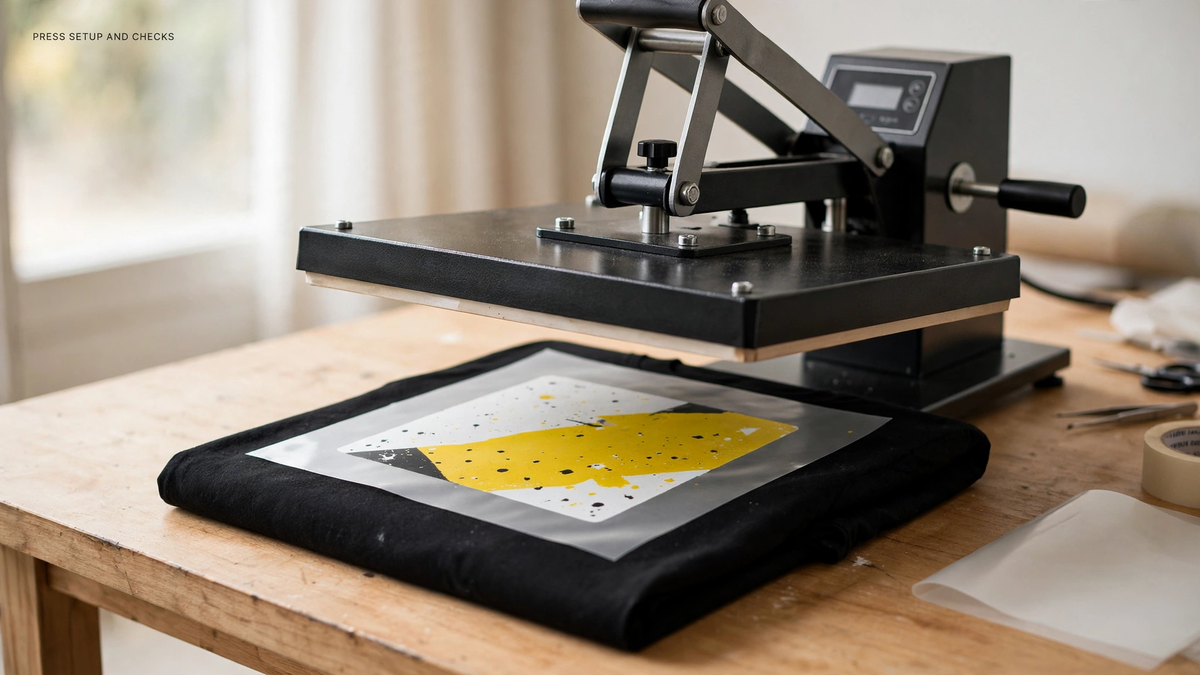

DTF artwork should be checked at the size it will appear on the garment. A sharp-looking thumbnail can hide a background box, rough edges, or lettering that disappears in the final print.
Start with the design's finished dimensions, then inspect the file around those dimensions.
Quick answer: remove unintended backgrounds, keep enough image detail for the final size, simplify fragile elements, and use the accepted upload format.
On this page
- Remove unwanted background
- Check pixels at final size
- Review fine lines and small text
- Match the accepted upload workflow
- FAQs
Remove unwanted background
For artwork intended to show the shirt around the graphic, check that the background is actually transparent. A white rectangle can look invisible against a white screen while still being part of the image.
Use a contrasting preview background to inspect the edges. Look for pale halos, stray pixels, and fragments left after removing a photo background.
Do not remove white artwork that belongs inside the design. A character's white eyes and an unwanted white canvas are different things.
Check pixels at final size
Choose the intended print dimensions before submitting custom textile DTF transfers.
For raster artwork, pixel dimensions and printed size work together. As an example, a 1,200-pixel-wide image placed four inches wide provides 300 pixels per inch; the same image at eight inches provides 150. These figures explain the relationship, not a universal acceptance standard.
Changing a resolution label alone does not restore detail absent from the original image. Use the best original file and compare it with the supplier's current requirements.
Review fine lines and small text
Inspect isolated dots, narrow strokes, small counters inside letters, and low-contrast details. Ask whether the production process can reproduce them at the chosen size.
A logo with a small tagline may work as a back graphic but need a version without that tagline for a chest placement, where the same letters occupy much less space. Resize the layout, then reconsider its details.
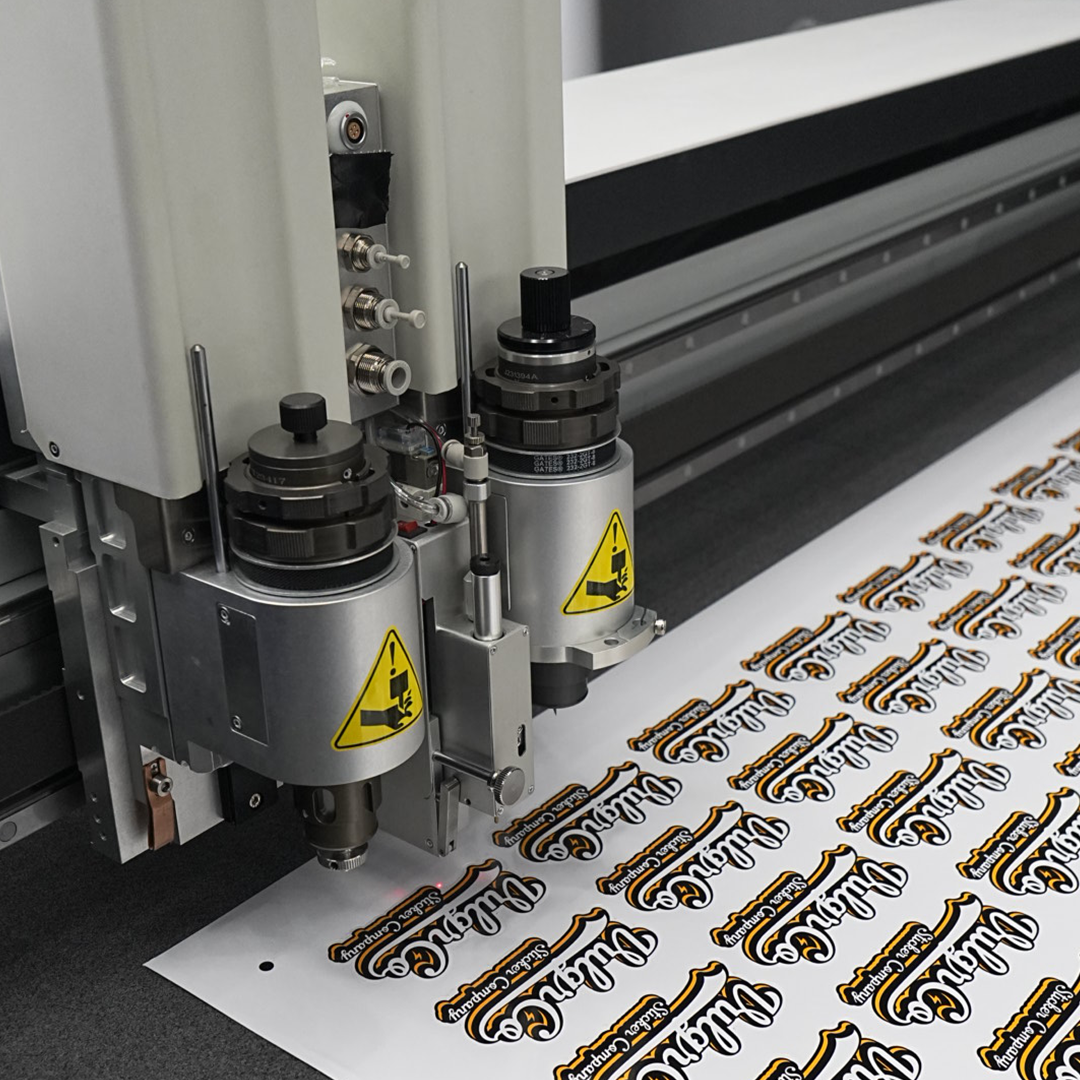
If the artwork also becomes custom stickers, prepare a separate print layout for that product. A garment transfer and a sticker can share a logo without sharing a production file.
Match the accepted upload workflow
Follow the current accepted file formats and background requirements. Do not flatten transparency or convert formats solely because a generic tutorial says to.
Keep an editable source, the submitted file, and the accepted proof as separate versions. Check that the latest version was uploaded.
Before approval, review:
- Finished width and height.
- Correct spelling and artwork version.
- Background and edge treatment.
- Details that remain readable at actual size.
Ask about any detail the proof cannot resolve clearly. That question belongs before a full garment run.
FAQs
Does my DTF file need a transparent background?
Use transparency when the intended design should have no printed background, subject to the supplier's accepted workflow. Inspect the file on a contrasting canvas. If a solid background is intentional, preserve it and confirm that it is represented correctly in the proof.
Can I increase the resolution of a small image?
Software can add pixels, but that does not automatically recover missing original detail. Start with a higher-quality source or a suitable vector file where possible. Check the artwork at the intended print size before treating it as ready.
Will tiny text print clearly?
That depends on the file, finished size, and production limits. Review the smallest characters with the supplier. Increasing the text size, simplifying its font, or removing a nonessential line can be more effective than relying on a magnified screen preview.
Can I use one file for transfers and stickers?
You can reuse the underlying artwork, but each product needs its own layout and production checks. Sticker cut paths and margins differ from garment placement needs. Keep the shared logo source while exporting separate files for each ordering workflow.