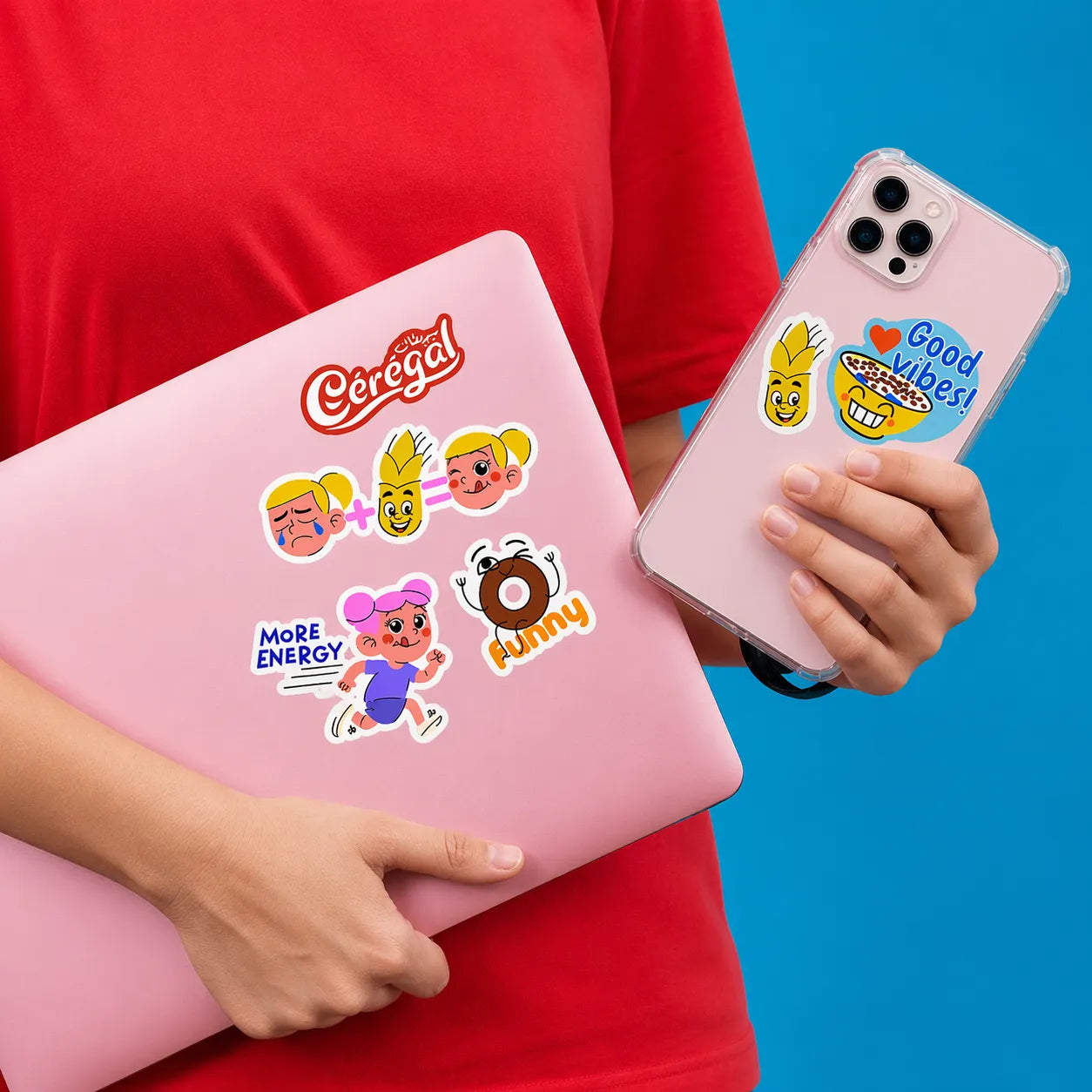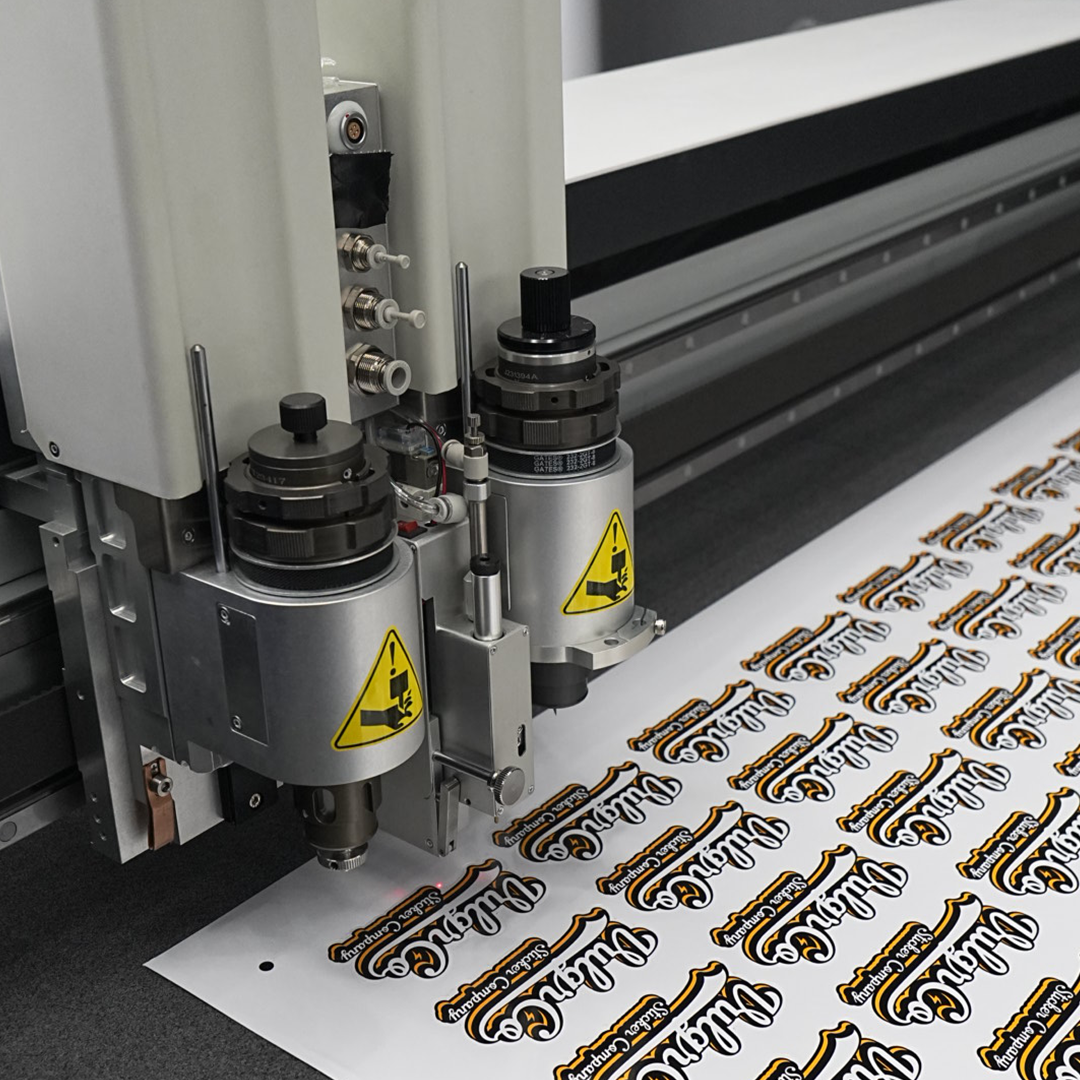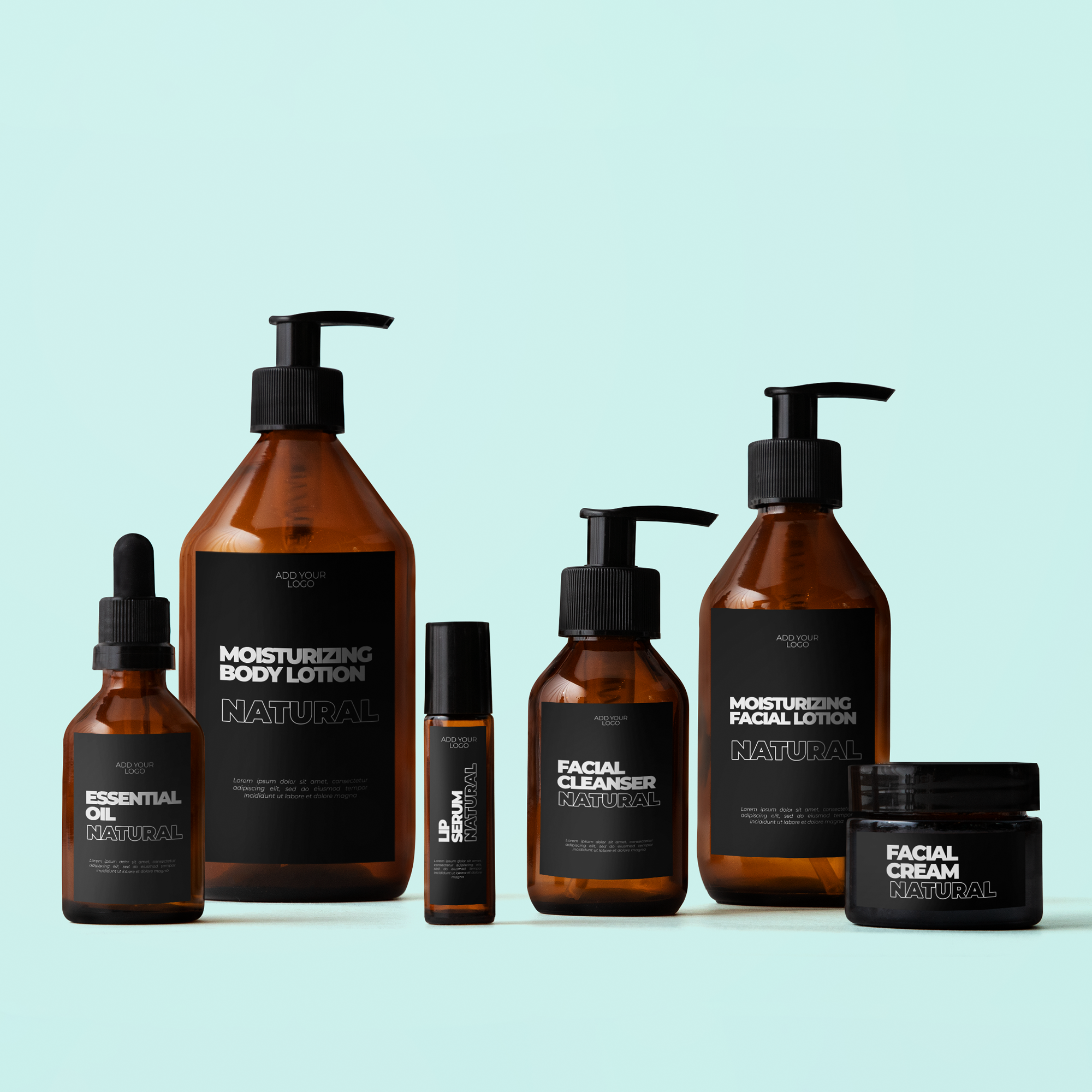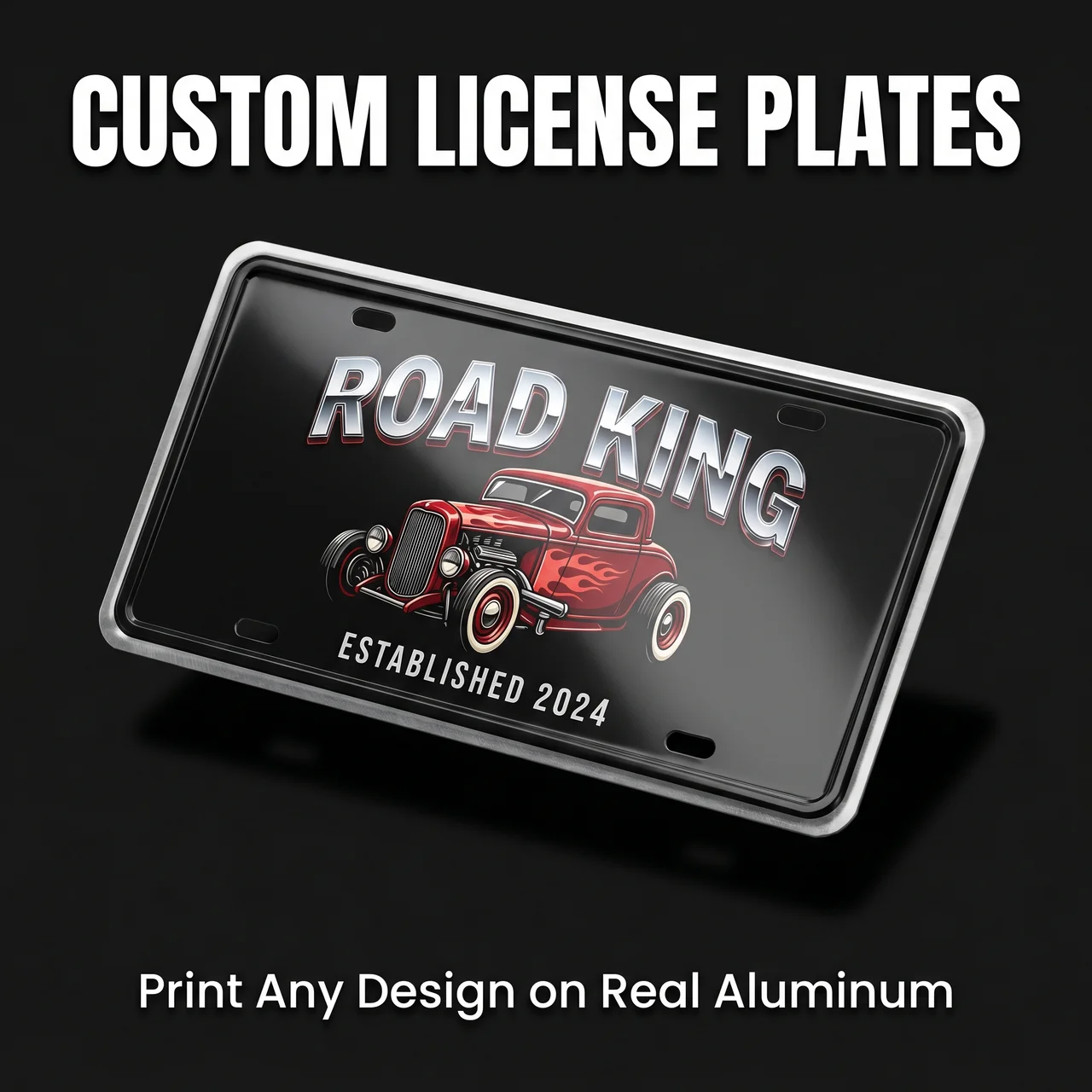

Clear sticker artwork works best when you design for the surface underneath it. A transparent background does not make the object disappear; it brings the object's color, texture, and contents into the composition.
For a creator or business labeling bottles, glass, or equipment, the useful starting point is a photograph of the real application area.
Quick answer: remove only the background you intend to remove, preview on the actual surface, and confirm the ink options for the specific clear product.
On this page
- Prepare a transparent background
- Preview the actual surface color
- Keep small details readable
- Check ink options before ordering
- FAQs
Prepare a transparent background
A white rectangle in a file is not the same thing as transparency. Check the artwork in an editor that can show transparent areas distinctly.
Look closely at the edges of the logo or photograph. A pale halo left by background removal can become noticeable against a dark object. Tiny disconnected fragments may also create unwanted printed detail.
Export to a file type accepted by the current uploader, preserving transparency where supported. Do not change formats just because another printer recommends them.
When preparing clear stickers, explain whether the design should show the underlying object around the image, inside the image, or both. Those are different visual intentions.
Preview the actual surface color
Place the design over a photograph of the intended object. Then make a second preview on a substantially lighter or darker background. This does not simulate the printing process, but it exposes contrast problems.
For a clear bottle, test the filled version as well as the empty one. The contents can change what sits behind the lettering. A design checked only on an empty container may look different when the product is ready for sale.
Watch for reflections and the curve of the surface. A flat mockup can hide the fact that the important word wraps out of view.
Keep the preview useful: use the actual sticker size and placement rather than enlarging it until every detail looks perfect.
Keep small details readable
Use a simple hierarchy. Put the main name or symbol where the background is most predictable. Keep small supporting text away from busy graphics and strong changes in container color.
A thin decorative font may be attractive at screen size but hard to inspect on the object. Print a paper mockup at the finished dimensions and check it without zooming.
If a design fails that basic test, increasing resolution alone will not solve the layout. Enlarge the text, reduce the message, or choose a background treatment that the actual print process can provide.
A transparent appearance is optional. Readable information is not.
Check ink options before ordering
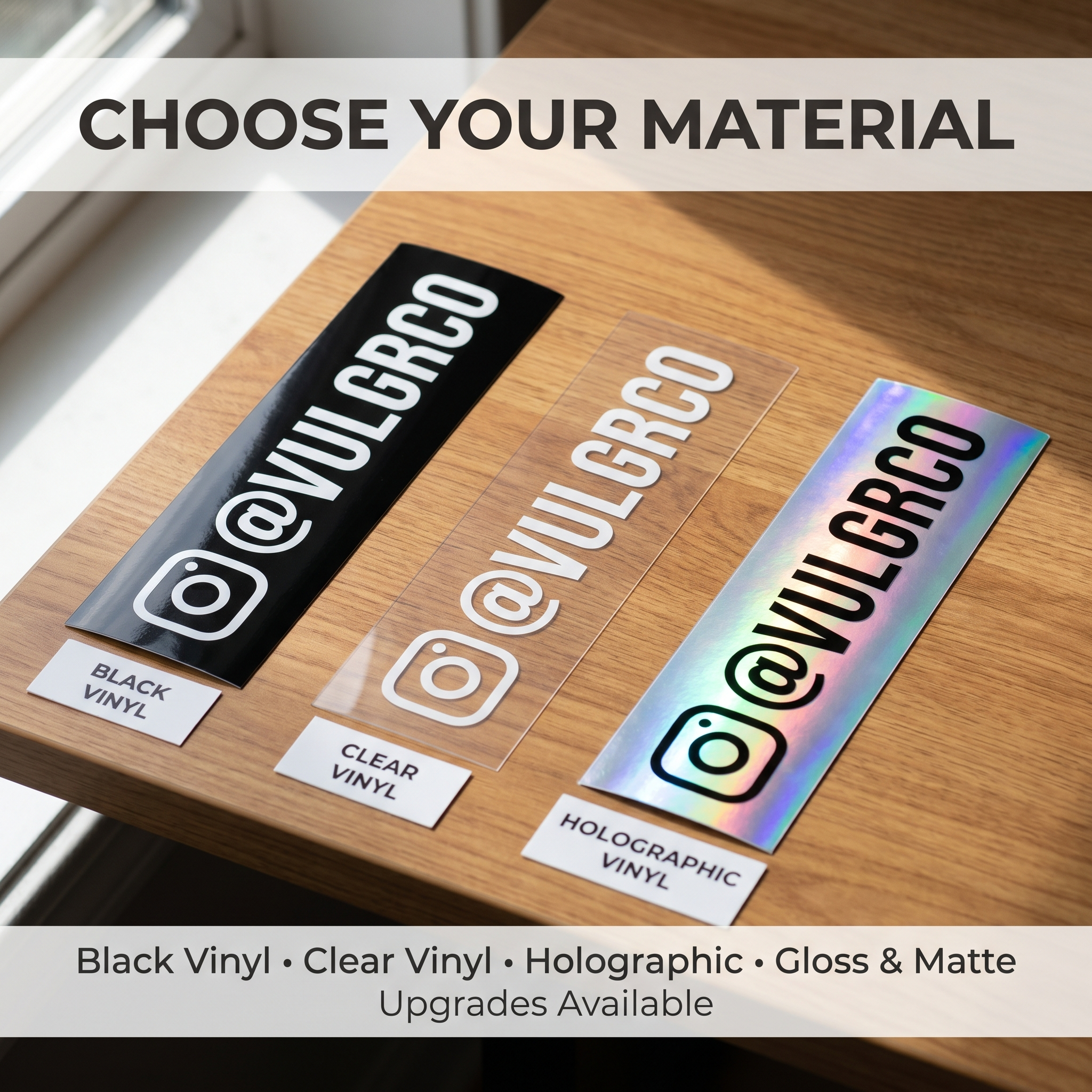
Do not assume a clear sticker includes an opaque white layer. White-ink support must be confirmed for that specific product; the policy on a holographic material does not automatically answer the question.
Before using the custom sticker ordering page, prepare a short note stating the surface color and which areas need to remain visible or opaque-looking.
Check the proof for placement, edges, and intended print areas. If the design depends on covering a dark surface with light text, resolve that requirement before approval.
The best clear design is one that still works on the object, not merely on the editor's white canvas.
FAQs
Will a white background disappear automatically?
Do not assume it will. White pixels and transparency are different file information, and production handling depends on the process. Remove the background intentionally when that is your goal, and tell the printer how white areas should be treated.
Can clear stickers be used on dark bottles?
That depends on the artwork and the available ink treatment. Printed colors or light lettering may not look as expected over a dark background. Preview the actual bottle, confirm opacity options, and test a suitable sample before committing to the design.
Do clear stickers include white ink?
Check the current clear-sticker product guidance and ask directly when white opacity matters. Do not infer the answer from another material or supplier. An artwork file containing white does not, by itself, establish that a white ink layer will be printed.
How should I preview a transparent design?
Use the intended sticker dimensions and place the artwork over an image of the actual surface. For containers, check the filled version too. Treat that mockup as a layout aid, then use a physical sample or production confirmation for ink and opacity expectations.