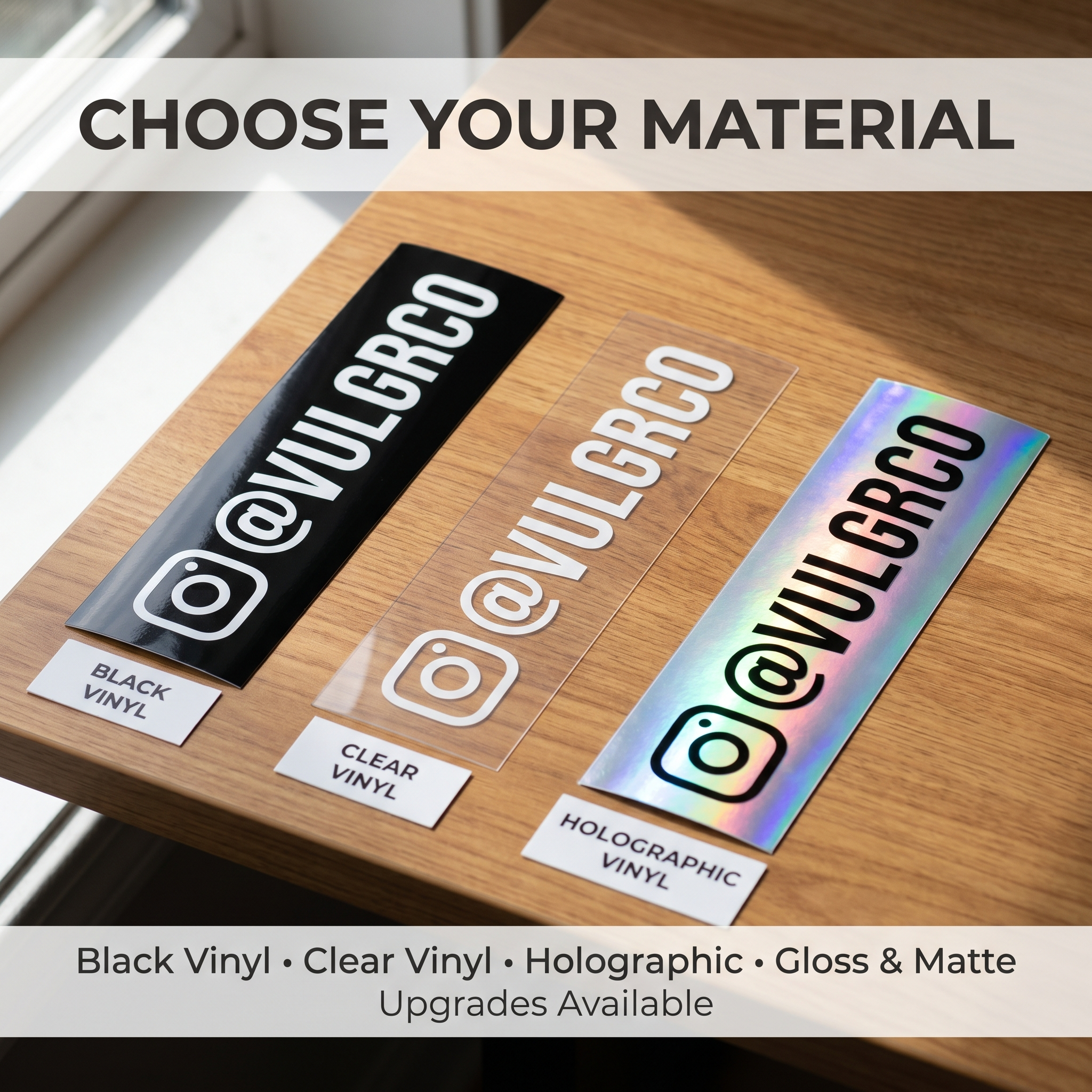

Holographic sticker artwork needs a different plan when the printer does not use white ink. On Vulgrco's holographic sticker page, the stated workflow is that white areas appear holographic rather than printing as true white.
That affects logos, faces, lettering, and any design built around white space. Treat the material as part of the image from the beginning.
Quick answer: use the substrate intentionally, protect readability, and confirm how your transparent and white areas will be handled before ordering.
On this page
- What holographic material contributes
- What white areas become on Vulgrco prints
- Use transparency and contrast intentionally
- Check a real sample against the proof
- FAQs
What holographic material contributes
The surface brings its own light-changing effect. An unprinted-looking area is not necessarily a neutral background; it can become the most noticeable part of the sticker.
Mark the parts of the design that should reveal the material. If your mascot has white eyes, a white smile, and white lettering underneath, review all three deliberately: each plays a different role in recognition, even though the file uses the same color for them.
Do not confuse a rainbow-looking preview with a faithful simulation of the physical material. The effect changes with the light and angle. A digital mockup can help with composition, but it cannot show every appearance the finished sticker will have.
What white areas become on Vulgrco prints
A logo that uses white lettering should not be approved on the assumption that those letters will remain solid white. The current product FAQ says white ink is not used.
Separate three intentions in your artwork notes:
- Areas meant to show the holographic substrate.
- Areas meant to carry printed color.
- Areas that need to look truly white.
If the third category is essential, discuss another material or a verified production option before ordering. Do not borrow instructions from a printer that offers selective white ink; that is a different workflow.
The safest design decision is to solve the true-white requirement before fine-tuning small visual details.
Use transparency and contrast intentionally
Keep critical words clear of visual clutter. A narrow outline or tiny shadow may disappear when the material catches the light. Try a larger shape, a simpler background, or a more separated text area.
Use transparency deliberately rather than removing a background and hoping every pale detail survives. Check semi-transparent edges, anti-aliased lettering, and soft gradients in the file.
For a simple logo, make an annotated version showing where you expect the effect to appear. The annotation belongs in your production notes, not in the print-ready image.
Ask for clarification when the preview and your intended result differ. Holographic artwork is a conversation about both printed color and the material underneath.
Check a real sample against the proof
Compare a suitable sample in room light and a second lighting setup. Move it slightly and inspect the smallest text, open spaces, and edges.
The material sample pack can support a finish comparison; confirm that the current pack includes the material you need. A sample of a different design helps explain the surface, but it does not prove your specific artwork will behave identically.
Before approval, check that the print team understands your open areas and true-white concerns. A clear file plus a short explanatory note is more useful than a complicated mockup with no instructions.
FAQs
Will white artwork print white?
Vulgrco's current holographic product page says white ink is not printed and white areas appear holographic. Do not expect true white from that stated process. If solid white is required, ask about an appropriate alternative before approving the order.
How do I reveal the holographic effect?
Identify the areas where you want the material to contribute and prepare the file according to the current product instructions. Transparency and printed color can affect the result. Confirm the intended open areas with the printer rather than copying another supplier's masking workflow.
Can a digital proof show every light angle?
No single flat preview can reproduce all the appearances of a changing physical surface. Use the proof to review layout, cut, and intended print areas. Use a real sample to understand the material's visual behavior under different lighting.
What if my logo needs a true white area?
Treat that as a production requirement before ordering. Under the currently stated no-white-ink holographic workflow, white artwork does not establish an opaque white print. Ask about another verified material or process instead of trying to fix the issue with a screen-only mockup.